SAFE System™ Solution Training

This SAFE System™ training will help you navigate your EPIC SAFE system. This training page will help teachers and administrators learn Audio Enhancement's SAFE System and SAFE alerts.
Introduction to the SAFE System™
* Your school or district will create and provide you with your campus SAFE Alert plan.

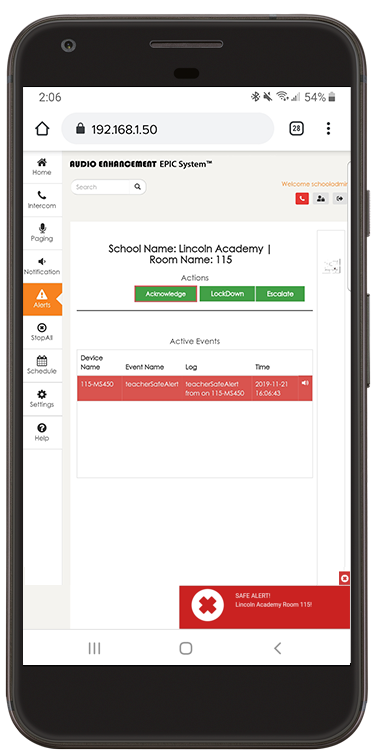
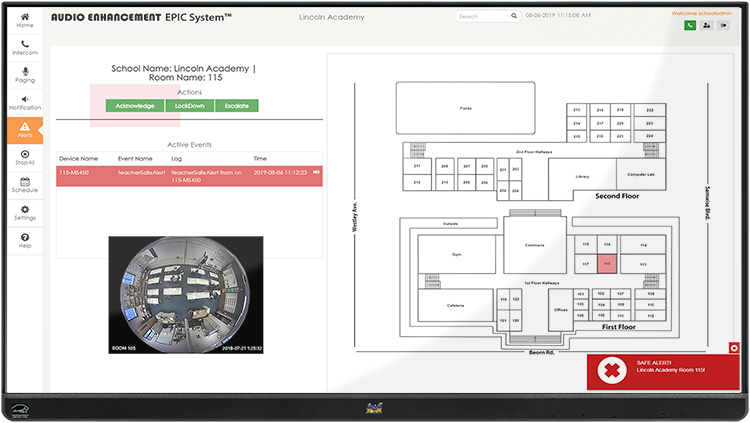
SAFE System (Signal Alert For Education) System™ provides a systematic solution to communicate incidents quickly for immediate resolution. The integration of SAFE System with the Teacher Microphone gives teachers a personal duress button, providing the ability to send alerts instantly from anywhere on campus. These quick alerts connect classrooms to the right people at the right time.


DISCREET ALERTS
Call for help without escalating dangers
QUICK RESPONSE
Immediately notify first responders from EPIC
MEDICAL HELP
Assess and respond to any emergency
The web-based interface gives administrators the ability to provide direction and maintain situational awareness of the entire campus, even in the most challenging emergency conditions. When seconds count, SAFE System is there to help!
Initiating SAFE Alerts
SAFE Alerts can be initiated a few different ways in the SAFE System. The most common initiating method is the discreet teacher microphone. While we do have wall, and under the desk SAFE Alert buttons, the teacher microphone is used most commonly since teachers are wearing everyday to instruct their class.
SAFE Alert Sent

To initiate a discrete SAFE Alert the user must push the 2 buttons on the sides of their teacher microphone. If in their classroom you will notice the Receiver LED lights will change to all RED to give a visual to the teacher that the SAFE alert was sent.
Anyone wearing a teachers microphone is able to initiate non paired alerts from anywhere on the campus. The microphone will transmit the SAFE Alert to a reciever close to the location of the user.
Once a SAFE Alert is Initiated, What is Next?
Every district is different and could have a different plan on what procedures need to be followed when a SAFE Alert is received based on district policies. Audio Enhancement does NOT provide it's customers with a SAFE Alert plan. Your District or School will create policies and procedures, as well as who will receive these SAFE Alerts. They are the only ones who can provide you with your campus SAFE Alert plan.
Acknowledging SAFE Alerts
One feature of the SAFE System is that once the Alert has been received, depending on campus policy, administration can acknowledge this alert. The lights on the receiver will change from all RED LEDS that show the teacher the alert was sent, to GREEN, RED, GREEN LED light pattern. These lights give the teacher who initiated the alert peace of mind that someone has seen and acknowledged that they need some help.

Ending SAFE Alerts
When a SAFE Alert is over, a designated admin user must end the alert. Standard Configuration does not allow front office standard users to end an alert. The administrator must go to their computer and log into the EPIC System and click end alert. A text box will appear and notes must be added in order to end the alert. If you choose to Audio Enhancement can help you to add this ability to the front office console user.
Don't Forget - Power Cycle your Teacher Mic!

After the SAFE Alert has ended it is very important to power cycle the microphone that was used to initiate the SAFE Alert. If you do not turn the microphone off after its been used in SAFE Alert, it will still be stuck in alert mode. in alert mode the microphone will continue to send a SAFE alert signals to your campus receivers every few minutes. If you keep getting random SAFE alerts check to ensure that microphones are not in alert mode.
9858 South Audio Drive, West Jordan, UT 84081
Toll Free: 800-383-9362
SAFE (Signal Alert for Education) System™ (patent pending) is an alert notification system not intended to be a life-saving device or prevent emergencies. Audio Enhancement, our agents, employees, subsidiaries, affiliates and parent companies are exempt from liability for any loss, damage, injury or other consequence arising directly or indirectly from the application of our equipment. In the event of misuse or malfunction of the SAFE System or any of its components, Audio Enhancement, our agents, employees, subsidiaries, affiliates and parent companies are exempt from liability for any loss, damage, injury or other consequence arising directly or indirectly therefrom.